

There are many tasks you need to accomplish for any writing project. Why not keep track of them in a to-do list within your Scrivener project?
Scrivener is a tool for writing long-form projects, as well as screenplays, short stories, poems, and more. As a complete writing environment, you can use Scrivener for other tasks related to your writing. For example, a previous article discussed how to track submissions for each project within the projects; see Create a Writing Submission Tracker in Scrivener.
Another thing you can do is set up a to-do list for tasks related to your projects, which you can view in Scrivener’s outliner. You could, of course, just make a bullet list in any text file, but using the Outliner gives you a lot more flexibility. While Scrivener can’t replace a dedicated task management app, it can be useful to have tasks specifically related to your writing projects within those projects.
Setting up a to-do list
Scrivener’s Outliner is similar to many outline apps. You can brainstorm and build a plot using the Outliner, adding items and moving them around, but the main advantage is the way it integrates with the Binder, where you do your writing. See Plan Your Project with Scrivener’s Outliner and Integrating Scrivener’s Binder, Corkboard, and Outliner.
To set up a to-do list, you can create a folder in the Binder containing text files. Don’t put this folder in the top-level folder that contains what you’re writing; don’t want your to-do list to be compiled when you have finished your draft, or to be counted in the overall project’s word count. In this example, I’ve created a folder in the Binder just below the top-level folder.
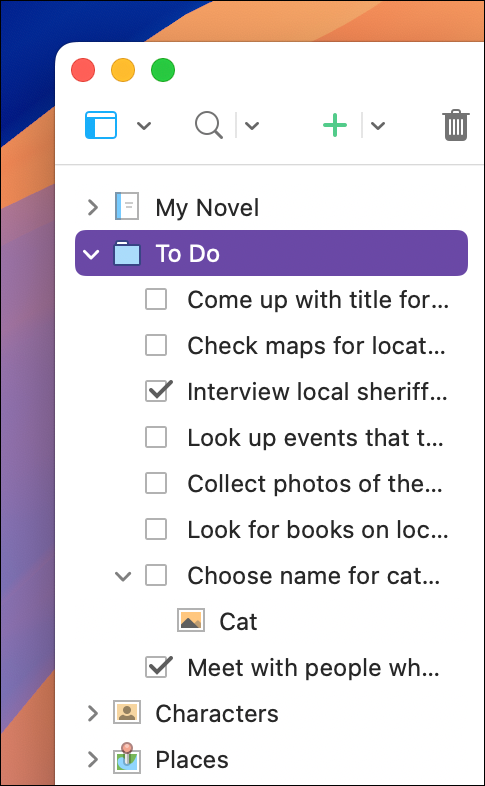
Since a to-do list is a simple series of tasks, each task can be a file. To add a file to the To Do folder, select the folder, then press Return; or choose Project > New Text; or click the + button in the toolbar above the Binder and choose New Text.
Each task can be a single file in that folder, and some complex tasks could be folders, with individual files for each sub-task. If you want to sort your tasks by topic, such as research, people to contact, queries to send, etc., you could create sub-folders within the To Do folder to organize them.
Viewing a to-do list in the Outliner
You can view your to-do files in the Binder, but using the Outliner allows you to add and view more information about your tasks. Click the To Do folder, then click the Outliner button in the toolbar to see its contents in the Outliner. Each task file has the task as its name, and you can add more information in each file’s synopsis in the Inspector. If you set up the Outliner to display titles and synopses, you can see both of these, whereas in the Binder, you only see the titles of files.
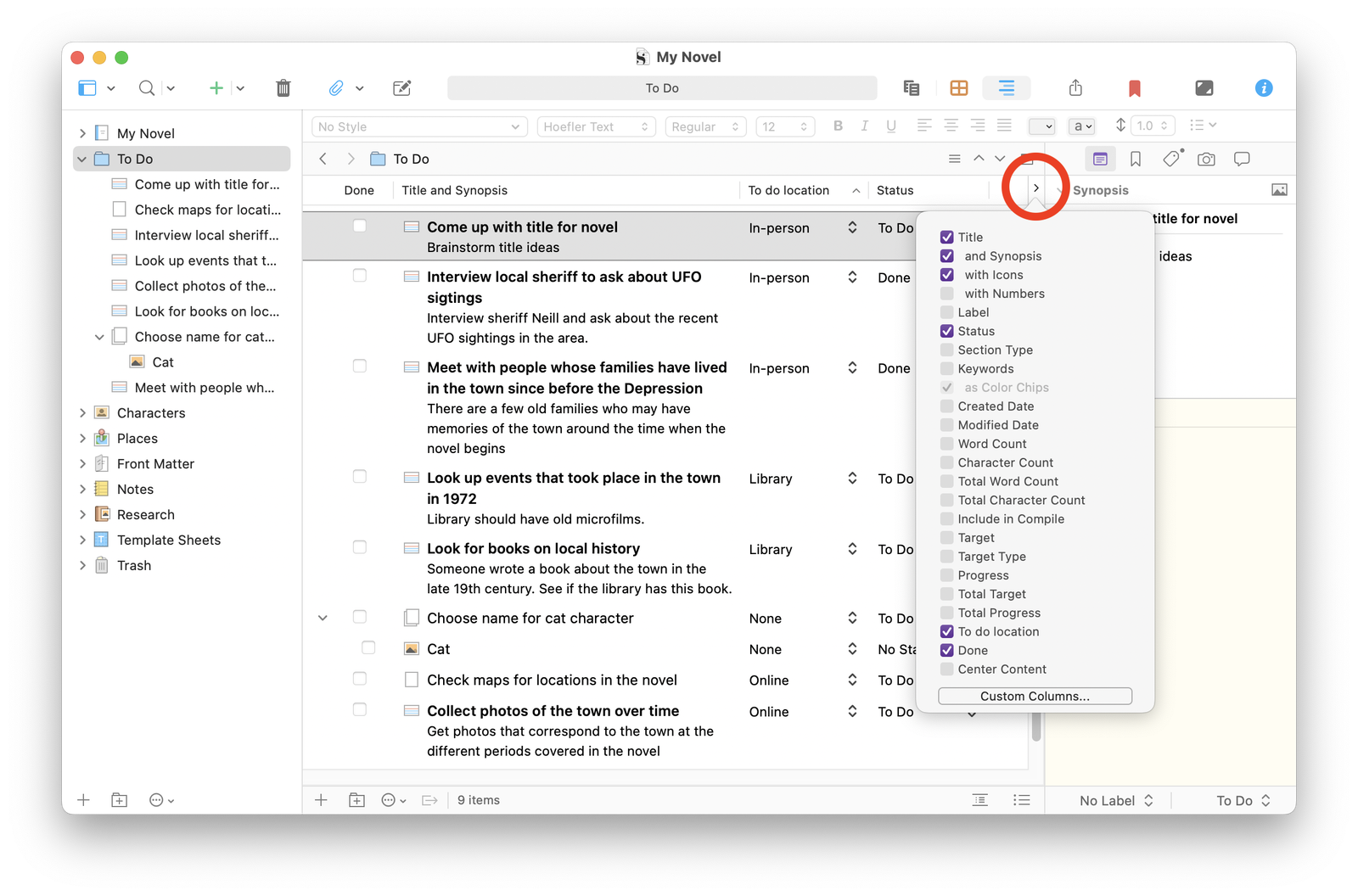
You can also display different columns in the Outliner, showing different bits of information. To choose which columns display, click the small greater than icon at the top right of the Outliner; check or uncheck the columns you want to view. For example, I’e chosen to display Title and Synopsis, so I can see both my tasks, and their notes.
I’ve also chosen to display the Status column in the Outliner, and I’ve created some custom status items. See Three Ways to Mark the Status of Items in Your Scrivener Project. While I’ve only set up two status items – To Do and Done – you could create others, such as Needs More Info, Waiting for Reply, etc.
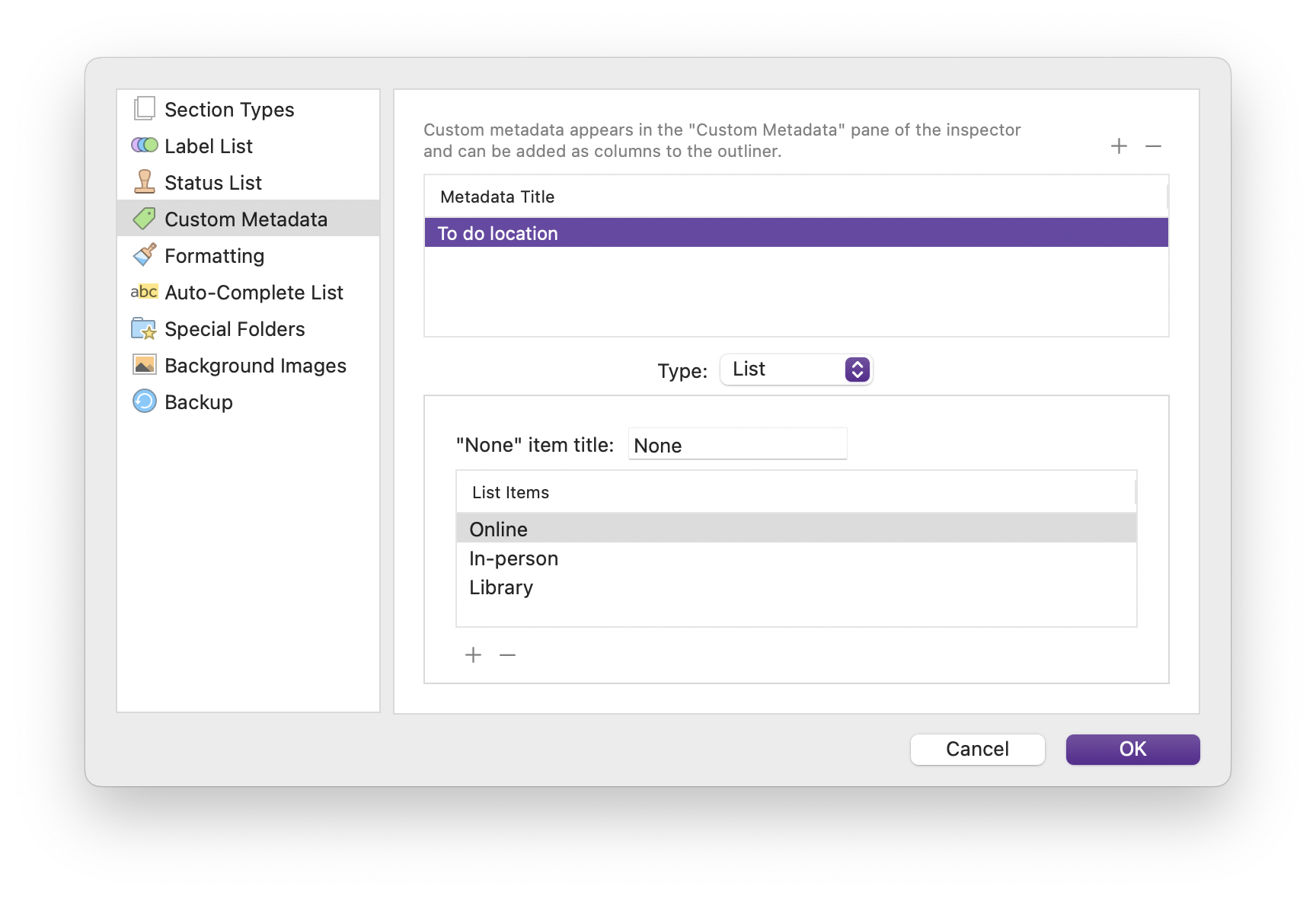
I’ve created a To do location column using custom metadata, which gives me a list with three choices: Online, Library, or In-Person. When I add a task to my to-do list, I choose from that custom metadata list. See How to Add Custom Metadata to the Scrivener Inspector to learn how to set up custom metadata.
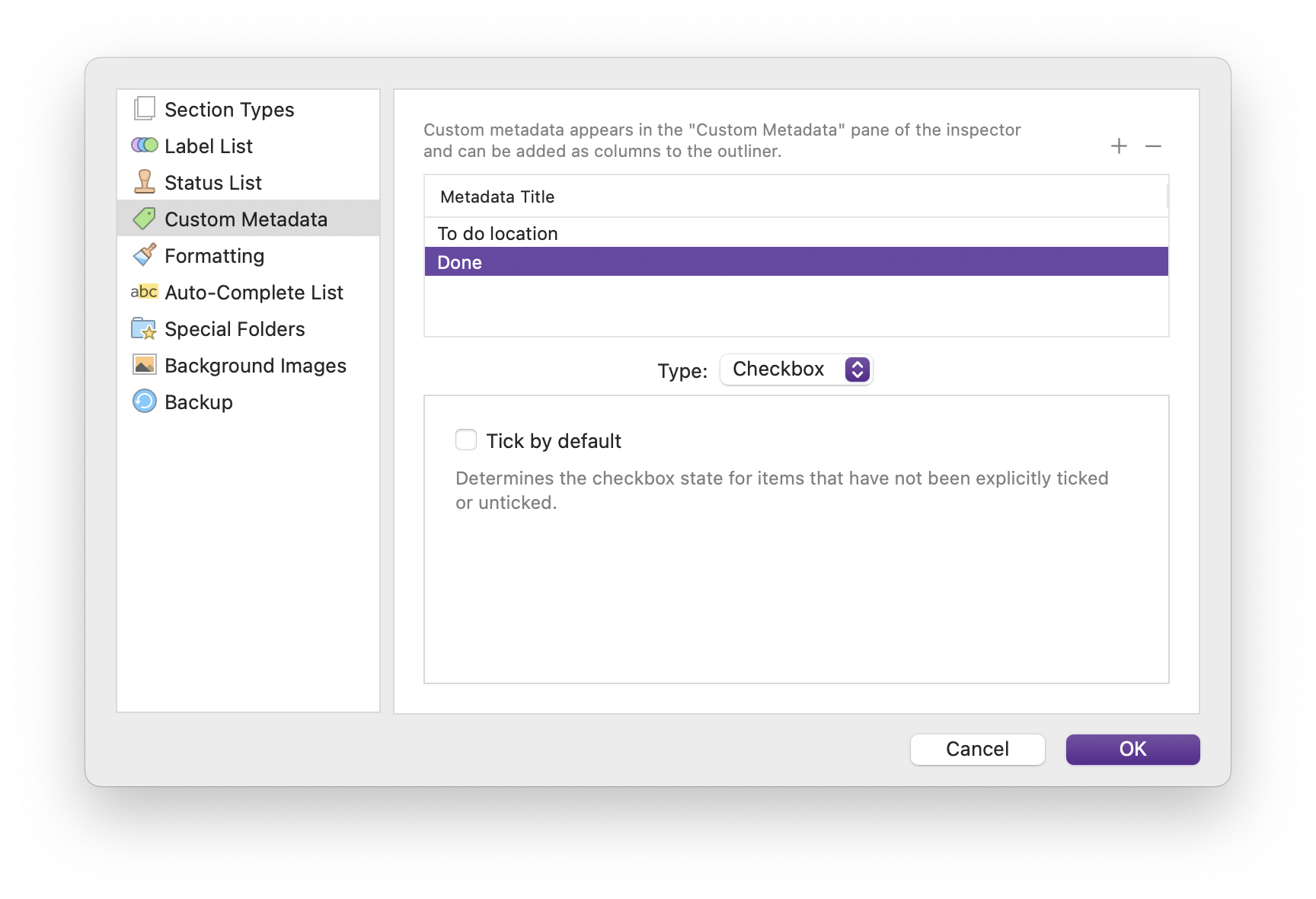
There is a Done column in the Outliner, which contains a checkbox that you can use to mark tasks as completed. You saw above how to create custom metadata for the Status column; you can also use custom metadata to create a checkbox. You could use this instead of or together with the Status column; this is just a boolean value, yes or no, whereas the Status column allows you to add refinements to the status of your tasks.
Add a new metadata item by clicking the + at the top of the Custom Metadata screen. In the Type menu, choose checkbox. Display this column in the Outliner as you did for the Status column.
Attaching files to tasks
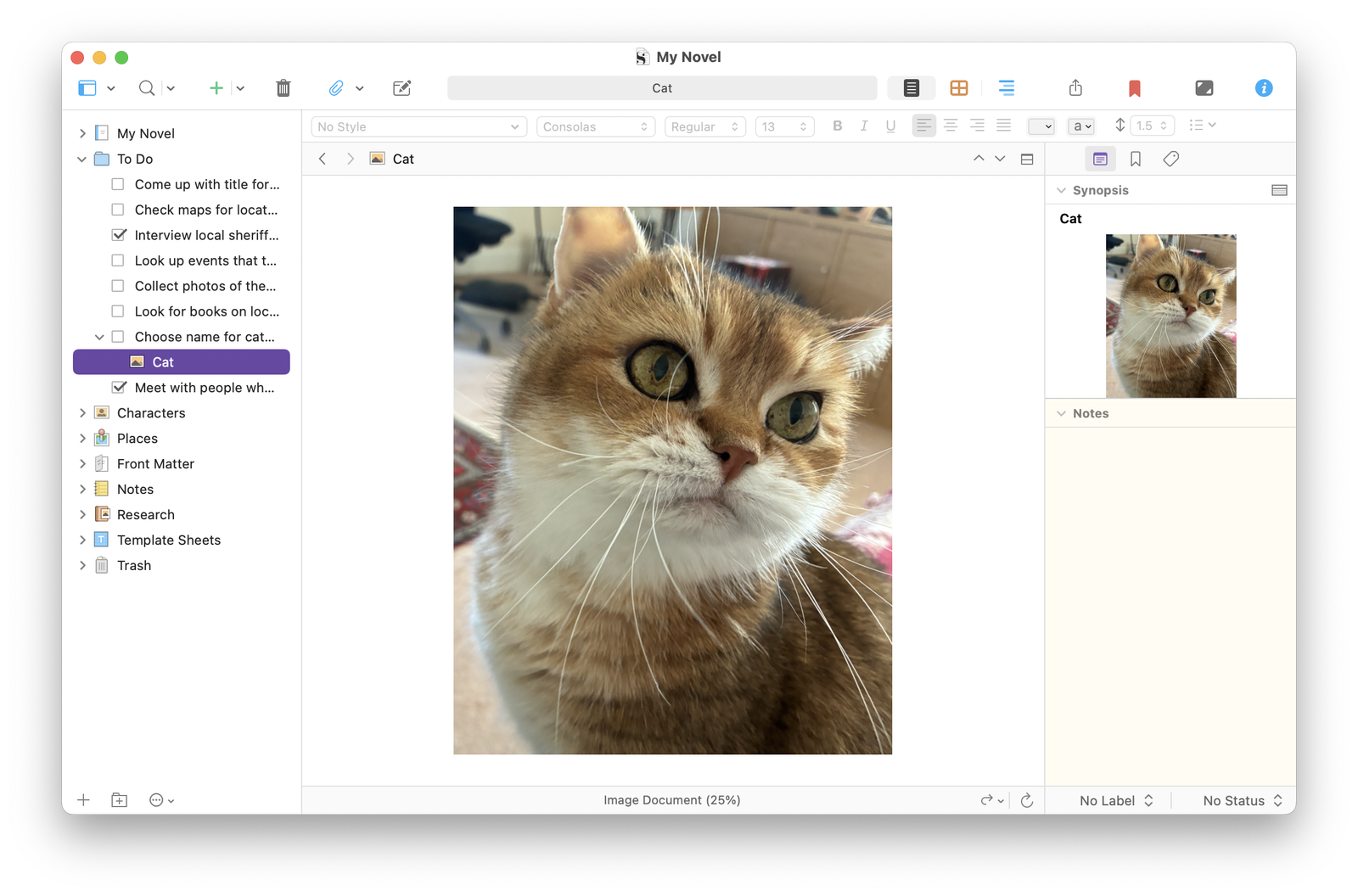
You probably know that you can add files to your project’s Research folder. (See Use Scrivener’s Research Folder to Store Information About Your Project.) Since files in Scrivener can be containers, you can attach many types of files related to your tasks to task files. You may want to add photos, screenshots, text files, PDFs, web pages, or more to your tasks to include information related to some of the tasks.
While Scrivener is far from being a dedicated task manager, its flexibility in layout, metadata, and file organization makes it a great tool for managing tasks related to your writing projects. Try it out and see if it works for you.
Kirk McElhearn is a writer, podcaster, and photographer. He is the author of Take Control of Scrivener, and host of the podcast Write Now with Scrivener.